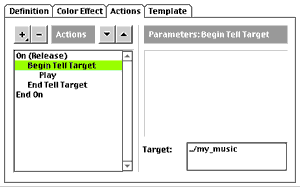
The Tell Target command is particularly useful for assigning a differentaction to each button as it is the only way to control a part of the Movie,which is outside of the Pulldown symbol. Let's recreate the action we made in the previous lesson. In theInstance Properties window (double-click on the first menu item button), adda Tell Target action and within it add a Play action just like before.Flash is kind of stupid and doesn't know you have an instance namedmy_music outside this symbol, so within the Tell Target action typing../my_music as the target. The "../" brings you up one level, out of thissymbol, and up to the top level of the movie where the Soundtrack symbol is(/my_music and _level0/my_music would both give you the same result inthis case).
A lesser used feature of Flash is the one that gives you the ability toload and unload movies into the same space. The main movie that a pagestarts with is by default called _level0. You can load additional Shockwavemovies into any number level. And once they're loaded, you can pass actionsbetween movies and their named symbols using the Tell Target commandpreceded by _level1 or _level2 or whatever number level the objectmovie is in.
Go ahead and test your progress (Control:TestMovie).
For the second button, let's assign another Tell Target action, but thistime, we'll control the action of the movie itself. Remember that beautifulshape tween you created in the previous lesson? If youfollowed instructions, you labeled the first frame play_shape. Add a TellTarget action to the second menu button with the target as / (slash) and insert aGo To action within the Tell Target action. Select the Label under theFrame menu and type play_shape next to it. Check the "Go to and Play" boxand then click OK.
For the third menu item, there's no need for a Tell Target item. Justadd a Get URL action pointing to your favorite Web site(http://www.aleeanne.org.uk/).
If you've tested your menu button, you may have noticed that it's actingsort of lame. When you roll over the button, the menu appears but nevergoes away.
Here's the trick: Add a new layer behind all the other layers (at thebottom of the list). Name this layer Reset. Next, insert a keyframe in linewith the other second keyframes. With the new keyframe active,create a large solid rectangle that generously surrounds the button andmenu items. Remove or mask out the area directly behind the button and menuitems so you can be sure it will have no effect there.
Next, convert this into a button symbol called Roll Out. Edit thatsymbol. Insert a keyframe under Hit and delete the rectangle under Up.You've just created an invisible button. The Hit keyframe will allow theuser to trigger it without seeing it because the rest of the frames areblank.
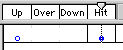
Return to the Menu symbol and select the second keyframe. The Roll Overappears blue. Flash does this so you can see the invisible symbol whileyou're working. Add an On Mouse Event event and check Roll Over andDrag Over. Then add a Go To action and enter "hidden" in the Label field.
The structure of your Roll Over button is now complete. If you haven'tdone so already, go ahead and add text or icons to define your menu itemsand any other embellishments.
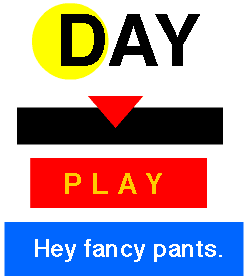
Return to the Edit Movie mode. If you've done the lesson as instructed, you now have a clutter ofbuttons that vaguely resemble a Times Square marquee. To simplify themovie, you can remove the Fancy button. You'll need to keep the Play/Stopbutton for the music to play, but you can delete the rectangle backgroundand remove just the text from the Soundtrack symbol.
next page»